Grading systems
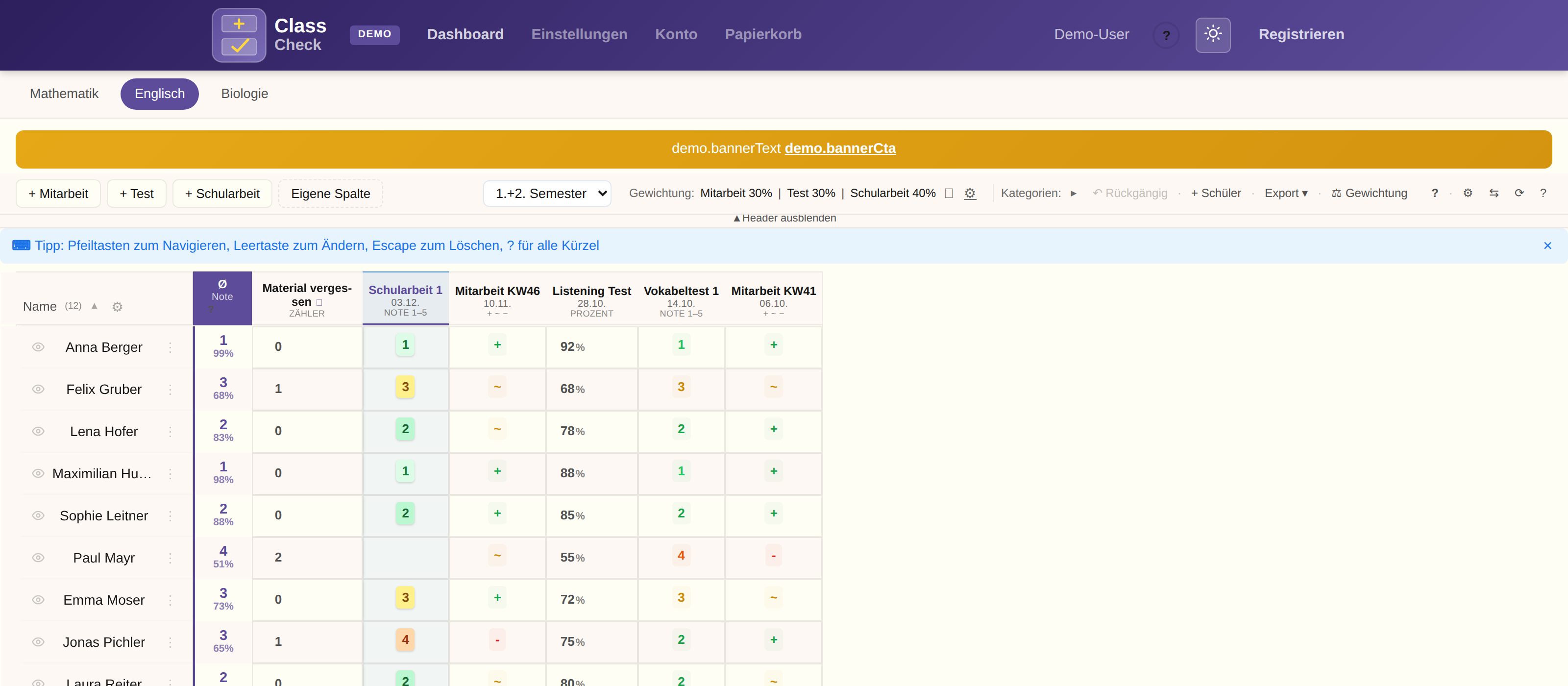
ClassCheck offers more than 10 grading systems — from plus/minus for daily classwork to points for class tests. You can pick a different system per column and combine them all in one table.
Overview
You can pick a different system per column and combine them all in one table. For the overall grade, ClassCheck converts every value to a percentage internally (details: Grade conversion).
Discrete grading systems
These systems use fixed values that you enter with a key press:
| System | Values | Entry | Use |
|---|---|---|---|
| +/~/− | Plus, tilde, minus | Keys +, ~, - |
Classwork, homework |
| */+/./− | Star, plus, dot, minus | Keys *, +, ., - |
More differentiated classwork |
| Grades 1–5 | 1, 2, 3, 4, 5 | Number keys | Tests, class tests |
| Grades 1–6 | 1, 2, 3, 4, 5, 6 | Number keys | Tests, class tests |
| A–F | A, B, C, D, E, F | Letter keys | International |
Cycling a value: Pressing the same key again clears the entry. That is how you correct or remove a grade quickly.
Excused: The e key sets the entry to “excused”. Excused entries are left out of the average in every system.
Numeric systems
Percent (0–100)
Type the number on the keyboard — the value is saved at once. Useful for percentage scores such as vocabulary tests or reading comprehension.
Points
When you create the column you set the maximum score (for example 20, 50, or 100). ClassCheck then shows:
Half points and other tenths are typed with a comma or a dot, for example 3.5 out of 10. A second decimal place is not accepted. Plus and minus move in steps of 0.5.
More points than the maximum are allowed, for example 53 out of 50. In the conversion the value stays at 100%.
- The maximum in the column header (for example
/20) - A color based on the percentage reached:
| Percent | Color |
|---|---|
| ≥ 80% | Green |
| ≥ 60% | Yellow |
| ≥ 40% | Orange |
| < 40% | Red |
Special systems
| System | Values | Use |
|---|---|---|
| Yes/No | ✓ / ✗ | Hand-ins, tasks done |
| Counter | 0, 1, 2, 3, … | A simple tally (for example missed lessons, late arrivals) — only a number, no date |
| Incidents | List (date + category + comment) | Individual dated incidents (for example laptop, homework, or reader forgotten) — optionally grade-relevant |
| Successes | List, each entry a grade value | Positive achievements (for example vocabulary champion). Each success counts in a category |
| Attendance | ✓, ✗, V, K, E | Attendance check |
Incidents — in detail
The Incidents column type is for things like “forgot the laptop”, “homework not done”, or “reader not with them”. Unlike the simple counter (which stores only a total), each entry records when and why something was missed:
- Date (today by default) — so in a parent meeting it is clear when each incident was.
- Category per entry (for example laptop, homework, reader) — free text, with suggestions from categories you have already used.
- Comment (optional) — for example “forgot the notebook”.
How to use it: The incidents column is pinned on the left and highlighted. The cell shows the number of incidents; a click opens the list, where you can add or delete incidents.
Incidents or counter? Use Incidents when you need a date and a reason for each event (for example for parent meetings). Use the simple counter when a total with no detail is enough. For a positive achievement that should count, use Successes.
Successes — in detail
The success column is the counterpart to incidents: a running list of positive achievements. A typical case is vocabulary champion. Whoever wins gets a success. You do not create a new column every lesson for that.
Creating it: In the “Custom column” dialog, click Add success column. Several success columns per subject are possible, for example vocabulary champion and stars. Incidents still have their own column, which you create separately. An existing counter is not converted. The new column counts from the moment you create it; old tally marks stay on the counter.
Required fields are name, category (for example classwork or written work), and the value per success.
Value: You enter a symbol (default *) and how many percent it counts (default 100). The symbol appears in the column header; the percentage goes into the grade. Higher than 100 is not allowed. The header shows, for example, “at 100% · *”. A later change applies at once to every success already counted in this column.
How to use it: The cell shows only the count. With no success it stays empty. A click in the cell shows plus and minus, as in the other columns. Plus raises the counter by 1 and stores today’s date. Minus removes the latest success. A click on the number opens the list. There you change the date and comment, or delete a single entry. The column is green and is not pinned.
Custom grading systems
In Settings you can define your own grading scales:
- Set your own values (for example “Very good”, “Good”, “Satisfactory”)
- Adjust colors and order
- Available as the grading system in any column
Which system for which purpose?
She then has different columns with different systems, all of which feed into the weighted average. She also has a Yes/No column for homework hand-in — it does not count toward the average, but it is recorded.
Read next
- Columns and templates — create columns and save them as a template
- Weighting — how weighting changes the average