Columns and templates
Columns are the core of your grade table. Here you will find which properties a column has, how to create one, and how templates automate assessments you use again and again.
What is a column?
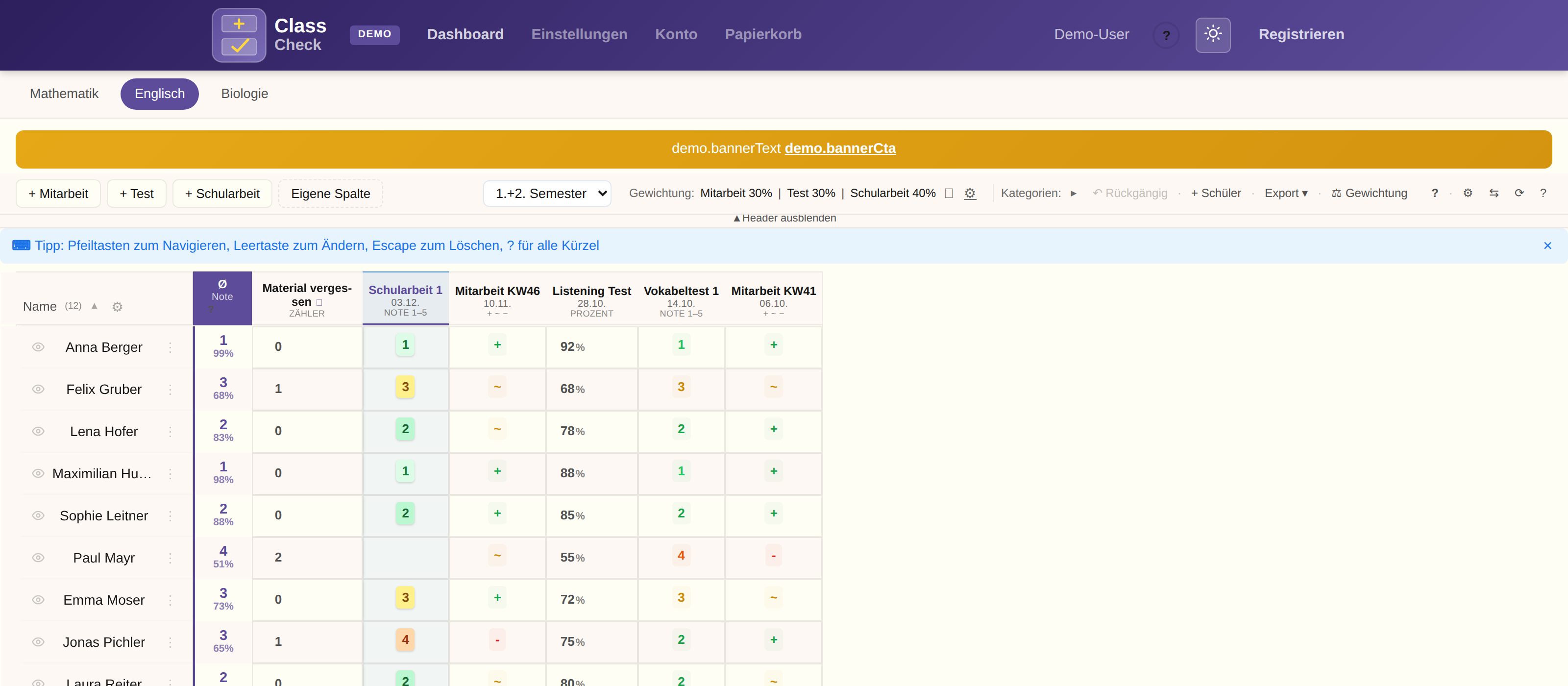
A column is one assessment — an exam, a classwork grade, a homework — on a given date. Each column has its own grading system and its own settings. You can add as many columns as you like and combine different systems.
Creating columns
There are two ways to add a column:
1. From a template
Open the subject and click the green + Column button. In an empty subject you can also pick Test, Classwork, or Homework. The button opens “Add custom column”.
2. Custom column
In that dialog you set the name, the grading system, the date, and the category. Presets live in Settings and fill the fields when the name matches.

Success column
In the “Custom column” dialog, next to the ordinary column, there are two special buttons: Create incidents column and Add success column.
The success column counts positive achievements, for example a vocabulary champion. Plus raises the counter by 1. Each success has a percentage you set and counts in a category such as classwork. With no success, nothing is counted. How it works in full, including whether a plus is 100% or 75%, is under Grading systems. The arithmetic is under Grade calculation.
Column properties
When you create or edit a column you can set these properties:
| Property | Description | Required? |
|---|---|---|
| Name | Label of the column (for example “Test chapter 3”) | Yes |
| Date | When the assessment took place | No |
| Semester | Assigned to semester 1 or 2 | No |
| Grading system | How it is graded (+/~/−, grades, points, …) | Yes |
| Max. points | Only for the points system: the maximum score | Yes (for points) |
| Category | Assigned to a column template | No |
| Color | Color mark in the header | No |
| Note | Internal comment on the column | No |
| Bold | The column name is shown in bold | No |
| Pinned | The column is fixed on the left (it does not scroll away) | No |
| Locked | The column cannot be edited | No |
| Excluded from the average | The column is ignored in grade calculation | No |
| Empty cells | Count as the neutral default, or ignore them. Default for new accounts: 55% (changeable in Settings). | Yes (for grade systems) |
Actions per column
Click the pencil in the column header. That opens the menu: edit, pin, lock, or delete. Deleting moves the column to the recycle bin. It stays there until you delete it for good. There is no automatic deadline. Enter moves one cell to the right. Cell color follows the grade. The header color is set in the column dialog. There is no separate color for a single cell.

Column templates (presets)
If you keep creating the same kinds of column, you can define templates and reuse them:
- What is saved: name, grading system, and color
- Quick access: When you create a new column, pick a template — every field is filled in
- Management: You create and edit templates in Settings
- Sharing: Templates can be shared with colleagues automatically when a class is shared
A practical example
- Class test — grades 1–5, color: red
- Test — grades 1–5, color: orange
- Classwork — +/~/−, color: blue
- Homework — Yes/No (does not count toward the average)
Read next
- Grading systems — every grading system in detail
- Weighting — category weighting in detail
- Grade calculation — average, weighting, and conversion