Weighting
A classwork grade does not count as much as a class test. With category weighting you decide how strongly each kind of assessment feeds into the overall grade. This article shows how that is set up in ClassCheck — with a full worked example.
Overview
ClassCheck calculates averages by category. Each category (for example classwork, tests, class tests) gets a percentage share of the overall grade. Inside a category, every ordinary column counts the same.
A success column is the exception: the column does not count once. Each individual success counts as its own grade in that category. Three successes weigh as much as three ordinary columns in the same category. The category keeps its weight. Details: Successes.
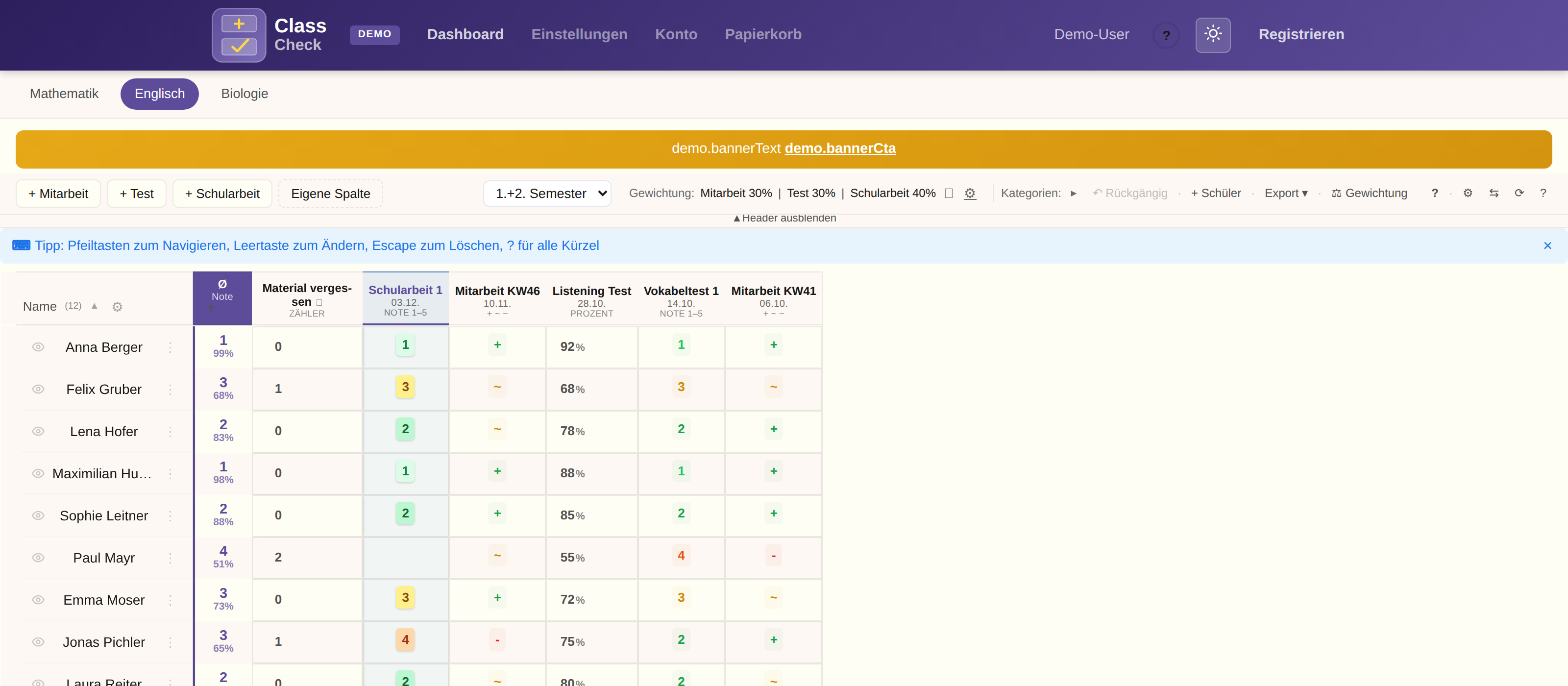
Turn weighting on
Weighting is on for new accounts, but the overall grade shows “-” until the category weights add up to 100%. You set those weights in Settings, and only after a subject exists. Until then there is no simple average of every column.

Calculation
The overall grade is built in two steps:
- First the simple average per category is calculated (every column weighted equally).
- Then the category averages are combined by their percentage shares.
Overall grade = Σ(category average × weight) ÷ Σ(weights that contributed)
A category with a weight but no grade yet is left out. The other weights are scaled to what is left. Example: classwork 40, test 40, homework 20 and the homework column is empty. The result is (classwork × 40 + test × 40) ÷ 80. Yes/No columns such as homework, and counters, have no weight field and are not a grade category. If homework should count, change that column to a grade scale and then set a weight.
| Category | Category average | Weight | Contribution |
|---|---|---|---|
| Classwork | 75% | 40% | 75% × 0.4 = 30% |
| Tests | 82% | 30% | 82% × 0.3 = 24.6% |
| Class tests | 68% | 30% | 68% × 0.3 = 20.4% |
| Overall grade | 100% | 75% |
Full example
6 columns in 3 categories:
Category “Classwork” (weight: 40%):
- Classwork Oct: + (100%)
- Classwork Nov: ~ (68%)
- → Average: (100 + 68) / 2 = 84%
Category “Tests” (weight: 30%):
- Vocabulary test 1: 2 (83%)
- Vocabulary test 2: 1 (100%)
- → Average: (83 + 100) / 2 = 91.5%
Category “Class tests” (weight: 30%):
- Class test 1: 3 (68%)
- Class test 2: 2 (83%)
- → Average: (68 + 83) / 2 = 75.5%
Overall grade: 84×0.4 + 91.5×0.3 + 75.5×0.3 = 33.6 + 27.45 + 22.65 = 83.7% → grade 2
Deductions (penalties)
Counter columns (for example “forgot materials”, “late”) can be set up as an automatic deduction:
Grade mode
Each count lowers the grade by a set amount (for example 0.2 grade points).
Percent mode
Each count subtracts percentage points from the overall average.
Details of the deduction calculation: Grade calculation
Read next
- Grade calculation — step by step from a single grade to the overall grade
- Columns and templates — create columns and save them as a template
- Grading systems — every available scale at a glance